
How to Delete Hiberfil.sys and Reclaim Disk Space (Windows)
What is hiberfil.sys (and why is it so big)?
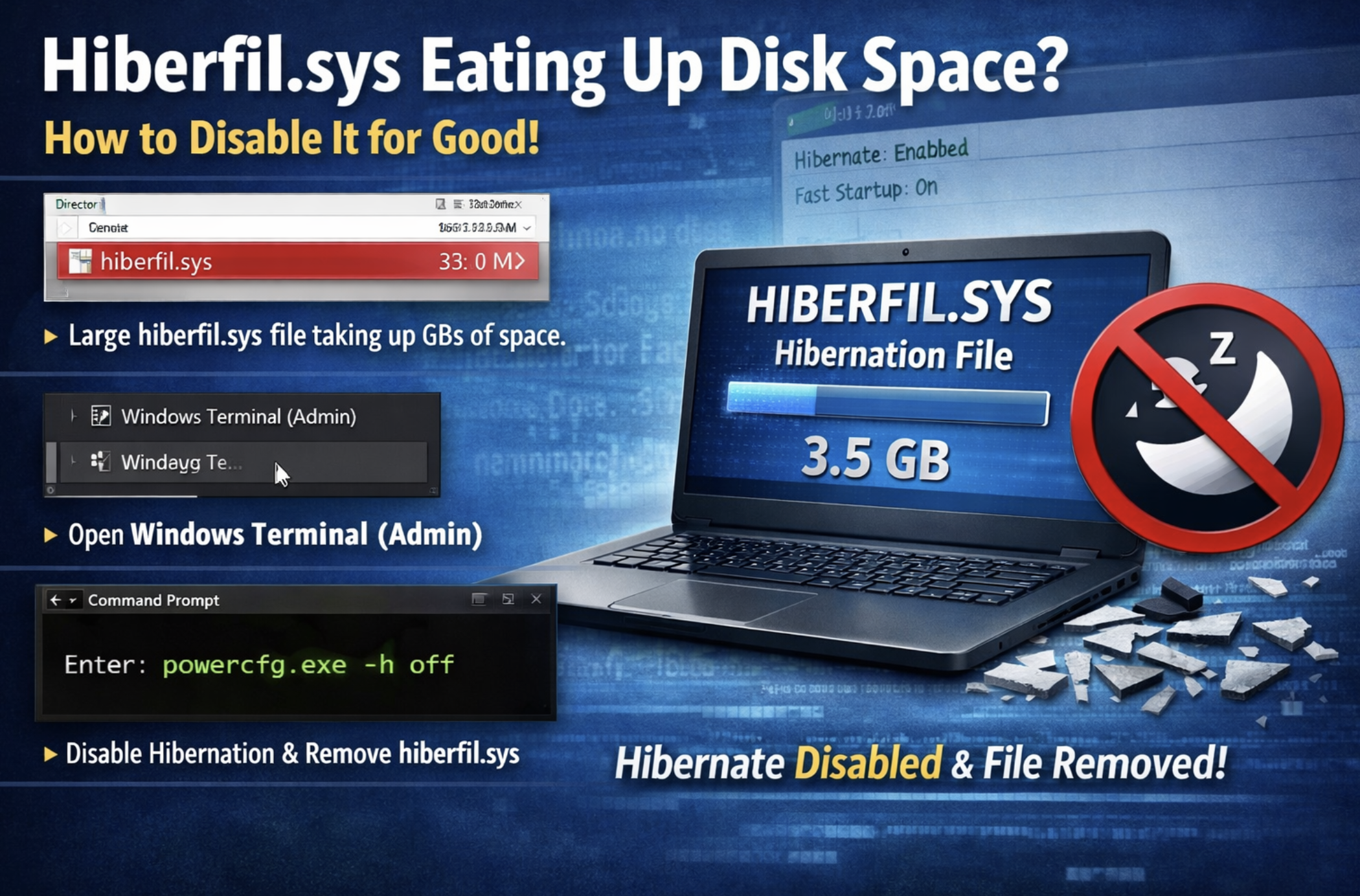
hiberfil.sys is a system file Windows uses for Hibernate and (on many PCs) Fast Startup. It can take up several GB because it stores system state to speed up boot or resume.
Important: Don’t try to delete hiberfil.sys manually. Windows will often recreate it. The correct way to remove it is to disable Hibernate (and optionally Fast Startup).
Option 1 (Recommended): Disable Hibernate and remove hiberfil.sys
This works on Windows 11, Windows 10, Windows 8/8.1, Windows 7 (and older versions such as Vista).
- Open an elevated Command Prompt:
- Press Start, type
cmd - Right-click Command Prompt → Run as administrator
- Press Start, type
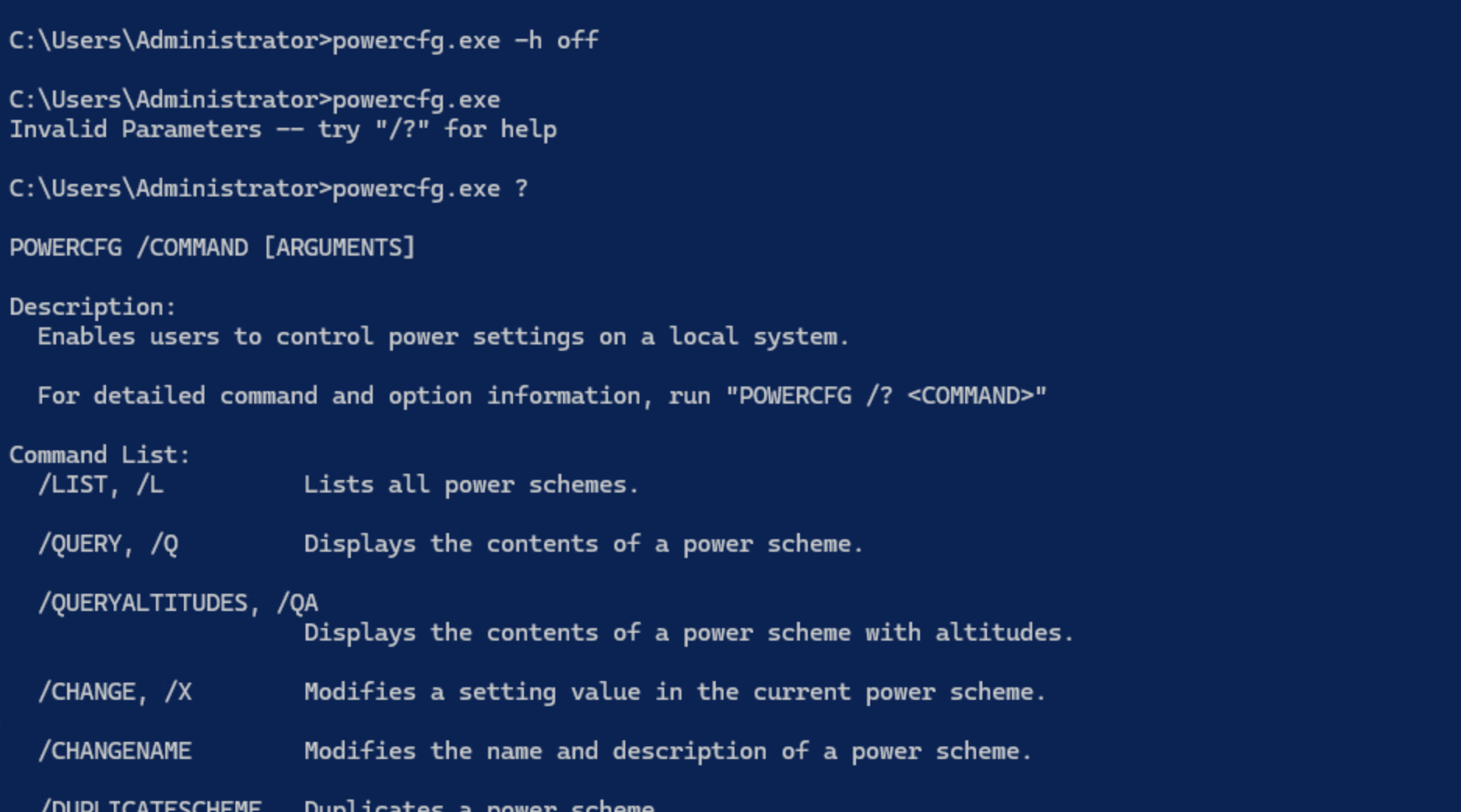
- Run this command:
powercfg /h offThat disables Hibernate and Windows should remove hiberfil.sys automatically.
What you lose: Hibernate option disappears, and Fast Startup may also be disabled on some systems.
Option 2: Keep Fast Startup, but shrink hiberfil.sys (Windows 10/11)
If you want Fast Startup but don’t care about full Hibernate, you can reduce the file size using “reduced” hibernation.
- Open Command Prompt (Admin)
- Run:
powercfg /h /type reducedThis typically makes hiberfil.sys smaller while still supporting Fast Startup.
Option 3: Set a custom hiberfil.sys size (Advanced)
You can limit the file size to a percentage of RAM (commonly useful on laptops with large memory). Run Command Prompt as admin, then:
powercfg /h /size 50Note: Valid values depend on Windows version and configuration. If Windows rejects the number, try a higher percentage (for example, 60).
Option 4: Disable Fast Startup (but keep Hibernate available)
If you mainly want to stop the “hybrid shutdown” behavior, you can turn off Fast Startup while keeping Hibernate for occasional use:
- Open Control Panel → Power Options
- Click Choose what the power buttons do
- Click Change settings that are currently unavailable
- Uncheck Turn on fast startup (recommended)
- Click Save changes
This may not delete hiberfil.sys entirely (Hibernate still needs it), but it can help if your goal is behavior rather than disk space.
How to turn Hibernate back on (and recreate hiberfil.sys)
If you ever want Hibernate back:
powercfg /h onQuick checks (Optional)
See what sleep states your PC supports:
powercfg /aConfirm whether the file exists (it’s hidden/system):
dir /a c:\hiberfil.sysTroubleshooting
- “Access is denied” → You didn’t run Command Prompt as administrator.
- Hibernate option missing → It’s disabled (use
powercfg /h onto restore it). - Fast Startup missing → Some systems hide it when Hibernate is disabled or due to policy/driver limitations.